Workloads & Jobs
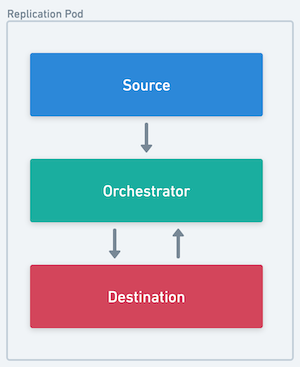
In Airbyte, all connector operations are run as 'workloads' — a pod encapsulating the discrete invocation of one or more connectors' interface method(s) (READ, WRITE, CHECK, DISCOVER, SPEC).
Generally, there are 2 types of workload pods:
- Replication (SYNC) pods
- Calls READ on the source and WRITE on the destination docker images
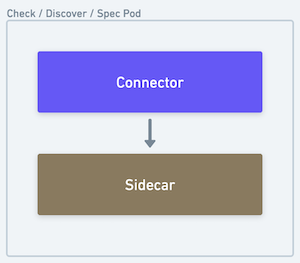
- Connector Job (CHECK, DISCOVER, SPEC) pods
- Calls the specified interface method on the connector image
 |  |
|---|---|
| The source, destination and orchestrator all run in a single pod | The sidecar processes the output of the connector and forwards it back to the core platform |
Airbyte Middleware and Bookkeeping Containers
Inside any connector operation pod, a special airbyte controlled container will run alongside the connector container(s) to process and interpret the results as well as perform necessary side effects.
There are two types of middleware containers:
- The Container Orchestrator
- The Connector Sidecar
Container Orchestrator
An airbyte controlled container that sits between the source and destination connector containers inside a Replication Pod.
Responsibilities:
- Hosts middleware capabilities such as scrubbing PPI, aggregating stats, transforming data, and checkpointing progress.
- Interprets and records connector operation results
- Handles miscellaneous side effects (e.g. logging, auth token refresh flows, etc. )
Connector Sidecar
An airbyte controlled container that reads the output of a connector container inside a Connector Pod (CHECK, DISCOVER, SPEC).
Responsibilities:
- Interprets and records connector operation results
- Handles miscellaneous side effects (e.g. logging, auth token refresh flows, etc. )
Workload launching architecture
Workloads is Airbyte's next generation architecture. It is designed to be more scalable, reliable and maintainable than the previous Worker architecture. It performs particularly well in low-resource environments.
One big flaw of pre-Workloads architecture was the coupling of scheduling a job with starting a job. This complicated configuration, and created thundering herd situations for resource-constrained environments with spiky job scheduling.
Workloads is an Airbyte-internal job abstraction decoupling the number of running jobs (including those in queue), from the number of jobs that can be started. Jobs stay queued until more resources are available or canceled. This allows for better back pressure and self-healing in resource constrained environments.
Dumb workers now communicate with the Workload API Server to create a Workload instead of directly starting jobs.
The Workload API Server places the job in a queue. The Launcher picks up the job and launches the resources needed to run the job e.g. Kuberenetes pods. It throttles job creation based on available resources, minimising deadlock situations.
With this set up, Airbyte now supports:
- configuring the maximum number of concurrent jobs via
MAX_CHECK_WORKERSandMAX_SYNC_WORKERSenvironment variables.` - configuring the maximum number of jobs that can be started at once via ``
- differentiating between job schedule time & job start time via the Workload API, though this is not exposed to the UI.
This also unlocks future work to turn Workers asynchronous, which allows for more efficient steady-state resource usage. See this blogpost for more detailed information.
Workload Launch Pipeline
When a workload is picked up by the Launcher, it passes through the following pipeline stages in order:
| Stage | Description |
|---|---|
| BUILD | Deserializes the workload input and constructs the container configuration (images, resource requests, environment variables). |
| CLAIM | Calls the Workload API Server to claim ownership of the workload. If another Launcher instance already claimed it, the pipeline exits early. |
| LOAD_SHED | Checks whether the Launcher has capacity to start a new workload. If the system is at its concurrency limit, the workload is released back to the queue. |
| CHECK_STATUS | Looks for an existing Kubernetes pod for this workload. If a pod already exists, the pipeline skips to the end to avoid launching a duplicate. |
| MUTEX | Enforces mutual exclusion — ensures no other pod is already running for the same connection. If an old pod exists, it is deleted before proceeding. |
| ARCHITECTURE | Resolves architecture-specific configuration (e.g. node selectors, tolerations). |
| LAUNCH | Submits the pod specification to Kubernetes. The pod is now being scheduled by the cluster. |
After the LAUNCH stage completes, the pipeline's success handler transitions the workload status to LAUNCHED via the Workload API.
LAUNCH to LAUNCHED delay
The time between the APPLY Stage: LAUNCH log line and the Attempting to update workload ... to LAUNCHED log line is the time Kubernetes takes to accept and begin scheduling the pod. In most cases this is seconds, but it can be significantly longer when:
- Large resource requests require the cluster autoscaler to provision new nodes (e.g. 4 CPU / 4 GiB per container × 4 containers = 16 CPU / 16 GiB total).
- Container images need to be pulled for the first time on a new node.
- Init containers must complete before the main containers start.
- Cluster capacity is insufficient and pods remain in a
Pendingstate until resources free up.
A delay of several minutes in these scenarios is normal and does not indicate an Airbyte misconfiguration. To diagnose long delays, check the Kubernetes pod events (kubectl describe pod <pod-name>) for scheduling or image-pull issues.
Workload Monitor
Airbyte runs a background monitoring process (the Workload Monitor) that periodically checks whether workloads are making expected progress through their lifecycle. If a workload misses its expected deadline, the monitor fails it automatically.
The monitor runs the following checks approximately every minute:
| Check | Watches for | Error message | Likely cause |
|---|---|---|---|
| Not claimed | Workloads stuck in PENDING status past their deadline | "No data-plane available to process the job." | No Launcher instances are running, or all are at capacity. |
| Not started | Workloads stuck in CLAIMED status past their deadline | "Unable to start the job." | The Launcher claimed the workload but failed to launch the pod (e.g. Kubernetes API errors, resource limits). |
| Not heartbeating | Workloads in LAUNCHED or RUNNING status whose heartbeat deadline has expired | "Airbyte could not track the sync progress. Sync process exited without reporting status." | The pod crashed, was OOM-killed, or the orchestrator process exited before it could report status. |
| Timeout | Workloads exceeding their maximum allowed duration | (varies) | Non-sync workloads timeout after 4 hours by default; sync workloads after 30 days. |
When one of these checks fails a workload, the platform surfaces a WorkloadMonitorException with failure type TRANSIENT_ERROR. The user-facing message is:
"Airbyte could not start the sync process or track the progress of the sync."
This is distinct from source/destination heartbeat errors, which monitor connector-level responsiveness within a running sync. The Workload Monitor operates at the platform level and checks whether the pod itself is alive and reporting.
How to debug a WorkloadMonitorException:
- Check the Kubernetes pod status:
kubectl get pods -l airbyte=workload— look forCrashLoopBackOff,OOMKilled,ImagePullBackOff, orPendingstates. - Inspect pod events:
kubectl describe pod <pod-name>— check for scheduling failures, resource pressure, or image pull errors. - Review pod logs:
kubectl logs <pod-name> -c orchestrator— look for startup errors or uncaught exceptions. - Check cluster resources: Ensure the cluster has enough CPU and memory to satisfy the pod's resource requests.
Further configuring Jobs & Workloads
Details on configuring jobs & workloads can be found here.
Sync Jobs
At a high level, a sync job is an individual invocation of the Airbyte pipeline to synchronize data from a source to a destination data store.
Sync Job State Machine
Sync jobs have the following state machine.
Attempts and Retries
In the event of a failure, the Airbyte platform will retry the pipeline. Each of these sub-invocations of a job is called an attempt.
Retry Rules
Based on the outcome of previous attempts, the number of permitted attempts per job changes. By default, Airbyte is configured to allow the following:
- 5 subsequent attempts where no data was synchronized
- 10 total attempts where no data was synchronized
- 20 total attempts where some data was synchronized
For oss users, these values are configurable. See Configuring Airbyte for more details.
Workflow Restarts and Retry Limits
Retries described above operate within a single job execution. However, certain platform-level events can cause the orchestration workflow to restart entirely. When this happens, the behavior is different from a normal retry:
- All in-progress jobs for the connection are terminally failed — both the current attempt and the job itself are marked as
FAILED. - The failure message reads: "An internal transient Airbyte error has occurred. The sync should work fine on the next retry."
- No automatic retry occurs. The connection waits for its next scheduled sync to create a new job.
- Retry counters (successive failures, total failures) are reset because they are scoped to a single workflow execution.
Common causes of workflow restarts include:
- Platform upgrades or deployments that restart Temporal workers
- Temporal server maintenance or failovers
- Temporal workflow history reaching its event limit, triggering a continue-as-new
The error message says "the sync should work fine on the next retry," but this refers to the next scheduled sync run, not an immediate automatic retry. If the underlying issue persists (e.g. repeated platform restarts), the connection may fail on successive scheduled runs without ever completing.
Retry Backoff
After an attempt where no data was synchronized, we implement a short backoff period before starting a new attempt. This will increase with each successive complete failure—a partially successful attempt will reset this value.
By default, Airbyte is configured to backoff with the following values:
- 10 seconds after the first complete failure
- 30 seconds after the second
- 90 seconds after the third
- 4 minutes and 30 seconds after the fourth
For oss users, these values are configurable. See Configuring Airbyte for more details.
The duration of expected backoff between attempts can be viewed in the logs accessible from the job history UI.
Retry examples
To help illustrate what is possible, below are a couple examples of how the retry rules may play out under more elaborate circumstances.
| Job #1 | |
|---|---|
| Attempt Number | Synced data? |
| 1 | No |
| 10 second backoff | |
| 2 | No |
| 30 second backoff | |
| 3 | Yes |
| 4 | Yes |
| 5 | Yes |
| 6 | No |
| 10 second backoff | |
| 7 | Yes |
| Job succeeds — all data synced | |
| Job #2 | |
|---|---|
| Attempt Number | Synced data? |
| 1 | Yes |
| 2 | Yes |
| 3 | Yes |
| 4 | Yes |
| 5 | Yes |
| 6 | Yes |
| 7 | No |
| 10 second backoff | |
| 8 | No |
| 30 second backoff | |
| 9 | No |
| 90 second backoff | |
| 10 | No |
| 4 minute 30 second backoff | |
| 11 | No |
| Job Fails — successive failure limit reached | |